
Git Merge vs Rebase
When working with Git, we frequently create branches to isolate a feature or a bug fix. Eventually, we need to bring those changes back into the main codebase. Git gives us two primary ways to do this: git merge and git rebase. Both achieve a similar goal, but they go about it very differently, and each comes with its own trade-offs.
The Scenario
Say you're working on a feature, so you've created a new branch called
feature off of main. You've done your work, and your tree now looks like this:!Feature branch created from main, diverging at commit B

While you were working, a teammate pushed a new commit to
main. Before opening a pull request for your feature branch, you want to make sure it includes the latest changes from main. To do that, you switch to main and pull the latest updates:git checkout main
git pull origin main
After running this, your tree looks like this (assuming only one new commit landed on
main):!After pulling the latest main, commit F is added to main

Now you need to bring those new changes from
main into your feature branch. You can do this with either git merge or git rebase. The end goal is the same, but the approach is different. Let's look at merge first.Git Merge
To merge
main into feature, you check out feature and merge main into it:git checkout feature
git merge main
This creates the following tree:
!git merge: a new merge commit is created on feature, joining E and F

The new commit marked
* is the merge commit Git creates automatically to tie the two histories together.A Note on Direction
There are two ways to do this: merge
main into feature, or merge feature into main. If you have push access to main and skip the PR process, you'd merge feature directly into main instead:git checkout main
git merge feature
That produces a similar tree, just with the merge commit living on
main instead:!git merge: a new merge commit is created on main, joining F and E

Either way, the branch being merged in is left completely untouched. That's the main appeal of
git merge: it's simple, safe, and doesn't rewrite any existing history. The trade-off is that it adds an extra merge commit every time, which can clutter your history and break up what would otherwise be a clean, linear sequence of commits.Fast-Forward Merge
There's a special case worth calling out: a fast-forward merge. This happens when
main hasn't moved at all since feature branched off, meaning there's nothing new on main to reconcile.!Before fast-forward: main has not moved past the branch point

In this case, merging doesn't need to create a merge commit at all. Git just moves the
main pointer forward to match feature:git checkout main
git merge feature
!After fast-forward: main's pointer simply moves forward to E, no merge commit

No extra commit, no divergence: just a clean, straight line.
Git Rebase
Now let's do the same thing with
git rebase instead. Starting from the same point where main has commit F and feature has commits D and E:git checkout feature
git rebase main
!git rebase: D and E are replayed on top of F as new commits D prime and E prime
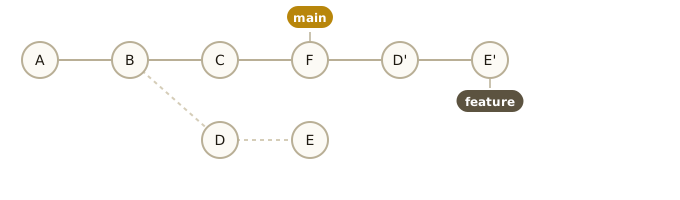
Notice the difference: there's no merge commit, and the history is completely linear. But under the hood, something more drastic happened: D and E weren't just moved, they were rewritten. Git replayed them on top of F, creating brand-new commits (D' and E') with new hashes. This is exactly why people love using rebase: it keeps history clean and easy to follow.
A Word of Caution
If
feature already exists on a remote, you'll likely run into trouble pushing it after a rebase. Since the old commits no longer exist, Git will reject the push because the histories no longer line up. You'll need to force-push instead:git push origin feature --force
Force-pushing isn't inherently dangerous if you know what you're doing, but be very careful about doing it on a branch other people are also working on.
Now consider the reverse: rebasing
main onto feature.git checkout main
git rebase feature
!Dangerous: git rebase main onto feature replays C and F as C prime and F prime, diverging from anyone else's main
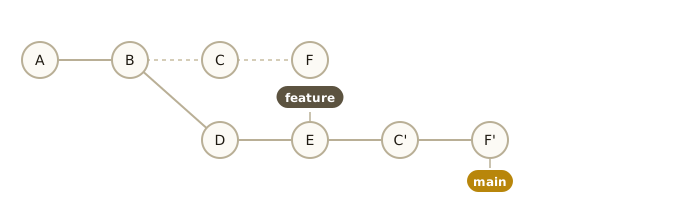
This is where things get risky.
main's unique commits get rewritten on top of feature, and you'd need to force-push main to share this. But anyone else who already has a copy of the old main is now in trouble: their local history has diverged from yours, and the next time they pull, Git will see a confusing tangle of "new" commits that look unrelated to what they had before.The rule to remember: never rebase a public/shared branch. Only rebase branches that you alone are working on.
Bringing It All Together: What git pull Is Actually Doing
Now that you understand the difference between merging and rebasing on your local machine, let's look at how this impacts your daily workflow.
When you want to grab the latest work from your team, the most common command you run is
git pull (just like we did at the very beginning of this scenario):git checkout main
git pull origin main
It's easy to treat
git pull origin as a single, opaque "get the latest changes" command. But it's actually doing two separate things under the hood, back to back:1. Fetch the latest commits from the remote branch, without touching your local branch at all.
2. Merge those fetched commits into your current local branch.
In other words,
git pull origin main is shorthand for:git fetch origin main
git merge origin/main
The fetch step downloads any new commits and updates a separate pointer called
origin/main, a read-only snapshot of where the remote branch is. Your local main doesn't move yet:!After git fetch: origin/main points at the new commit F, local main hasn't moved

Then the merge step does exactly what we covered earlier in this post: it merges
origin/main into your local main, creating a merge commit if the histories have diverged, or fast-forwarding if they haven't.git pull origin --rebase
Once you know that
git pull is just "fetch + merge," the --rebase flag is easy to understand: it swaps the merge step for a rebase.git pull origin main --rebase
This is shorthand for:
git fetch origin main
git rebase origin/main
Instead of creating a merge commit, Git takes any commits you have locally that aren't on
origin/main yet, and replays them on top of origin/main. This works exactly like the rebase example earlier in this post, just with origin/main standing in for main:!git pull --rebase: local commit G is replayed on top of origin/main F as G prime
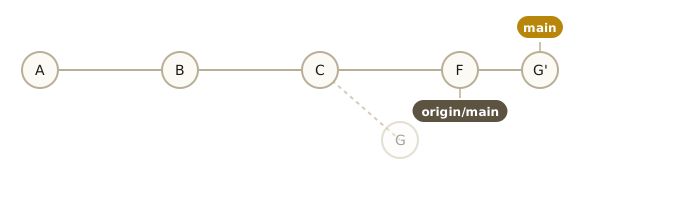
Which One Should You Use?
It comes down to the same trade-off as
merge vs. rebase in general:git pull origin mainis the safer default. It never rewrites history, but if you have local commits, you'll get an extra merge commit every time you pull.git pull origin main --rebasekeeps your history linear by replaying your local commits on top of the remote ones. But remember, this rewrites your local commits. If you've already pushed them and someone else has pulled them, you're back in the "dangerous rebase" territory we covered earlier.
A common, low-risk habit: use
git pull --rebase only on a private branch (like our feature branch) that you alone are working on, and stick to a plain git pull (or just git merge) on shared branches like main.Conclusion
Both
git merge and git rebase are useful, and knowing when to reach for each one matters more than memorizing a hard rule. As a rough guideline: use merge on public/shared branches, and rebase on your own private branches.If you're working on a feature that's going to take a while, and you want to keep it up to date with
main as you go, rebase is usually the better choice: it keeps your feature branch clean, linear, and free of the extra merge commits that git merge would otherwise pile up.